Gmail is a free email service from Google that makes staying on top of things even easier.
Its clean interface and unique features help you organize your day so you can focus on what matters most.
And Google has released many new Gmail features in the last few years.
Here are our top picks of Gmail features that will make your email experience even better.
1. Sending Confidential Emails in Gmail
When you’re sending sensitive information, this feature allows you to encrypt your email quickly.
It will help you to prevent confidential information from falling into unwanted people’s hands by forwarding, copying, printing, or downloading your email or attachments.
Moreover, you can set an expiration date and able to lock your email with a password.
First, you need to compose a new email. Click “Compose” and click on the Confidential Mode icon. After the pop-up prompt, you’ll be able to set up an expiration date and passcode options to protect your email.
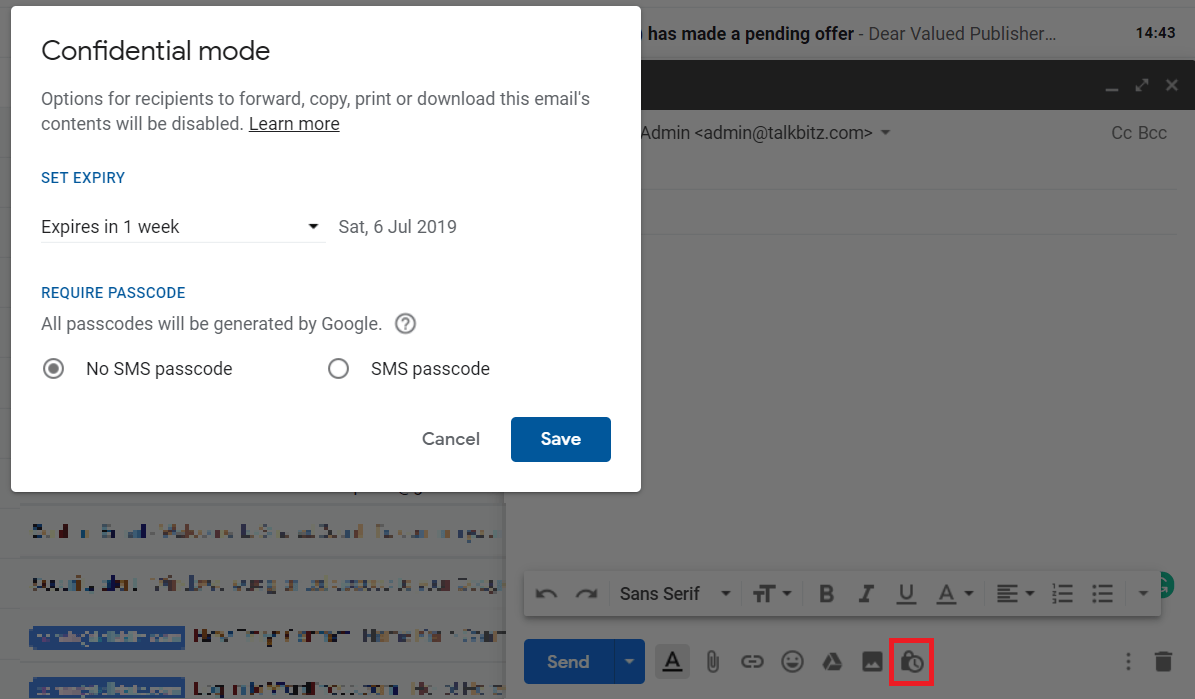
In the passcode section, you can able to set the SMS passcode option and enter the recipient’s phone number when you are sending the email.
The email recipient will automatically receive a passcode when they try to open the mail after you send it. But the SMS feature is limited to some regions.
2. Scheduling Emails
Scheduling is the best way to manage all tasks correctly on time. Gmail has this same feature to schedule your emails.
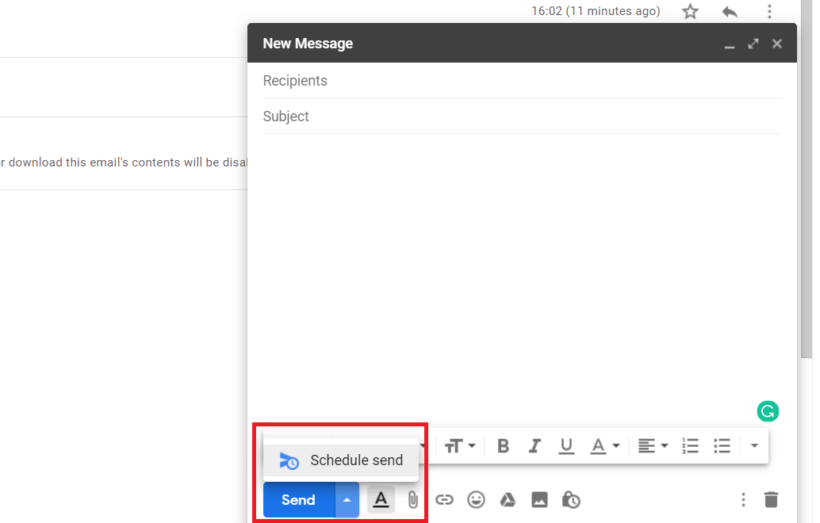
Simply, open the “Compose” and write your email, and click on the “Arrow up” button next to the send button. Now you can set your scheduling, and you’re good to go.
3. Tracking Emails
Many times, we are worried about whether our mail has been read or if it landed in spam. But Gmail has no built-in feature to track emails.
But, there is a free Chrome extension that lets you track emails that bring you to read receipts.
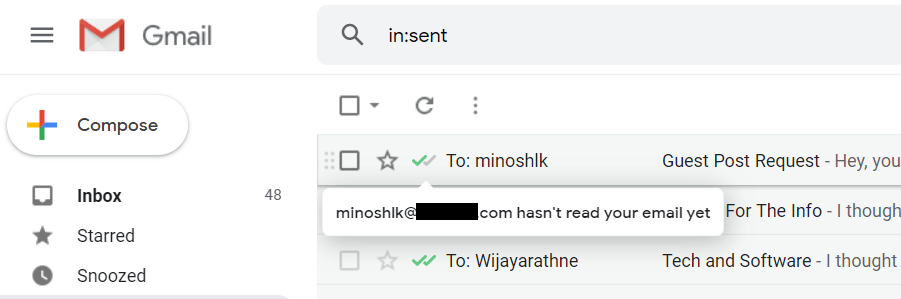
To enable this Gmail feature, you have to install the Mailtrack extension. (It also offers a paid version.)
Just install the extension and give the permissions, and it will start working automatically. With this extension, you will get a notification when emails are read or not, and which ones are open or not.
4. Enabling Preview Pane
If you have ever used Outlook, you already know how the preview pane is helpful. It enables an additional pane to your Inbox so that you can view your emails right in the inbox, shuffling between emails one by one.
This is a very convenient feature, and it saves you time you’ll never need to open emails one by one using click-back.
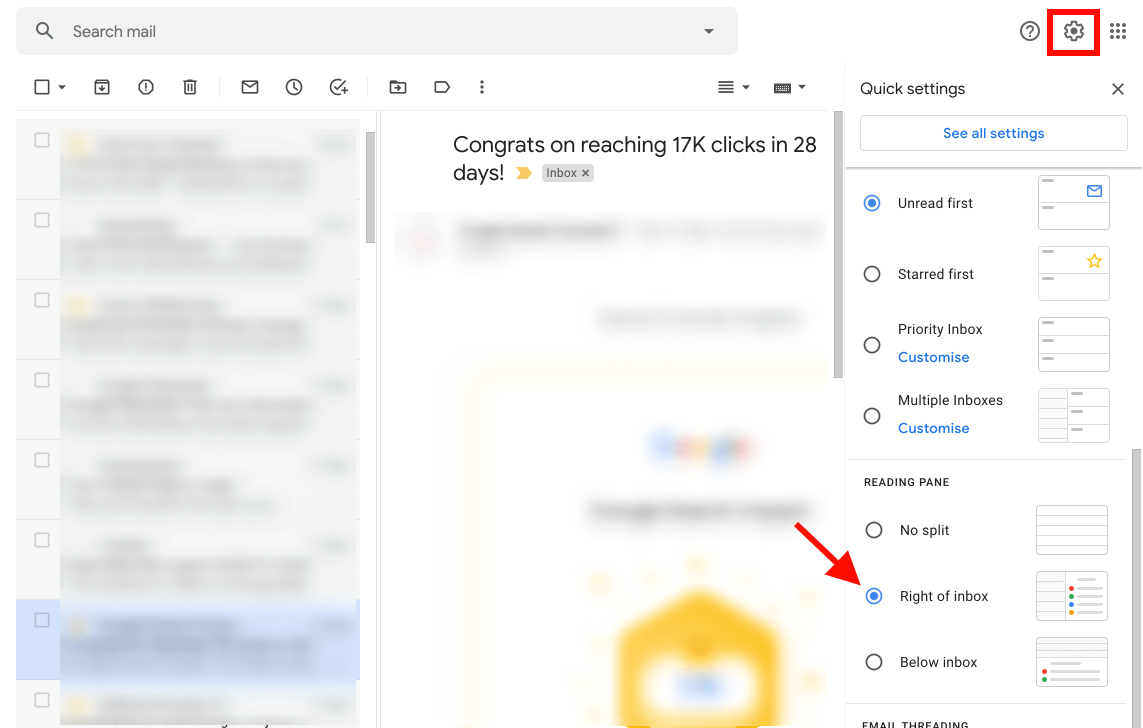
To enable the Preview Pane in Gmail, go to Gmail settings by using the settings icon on the top right and scroll down to the “Reading pane” option. Select “Right of Inbox.” That’s it.
5. Using Canned Responses
Another handy feature is that it prevents you from responding again and again to a number of different emails. This is easy to set up, and it can save you time cleverly.
To enable this feature, navigate to Gmail settings, choose the “Advanced” tab, and scroll to the “Canned responses” section. Just enable it and make sure to save your settings.
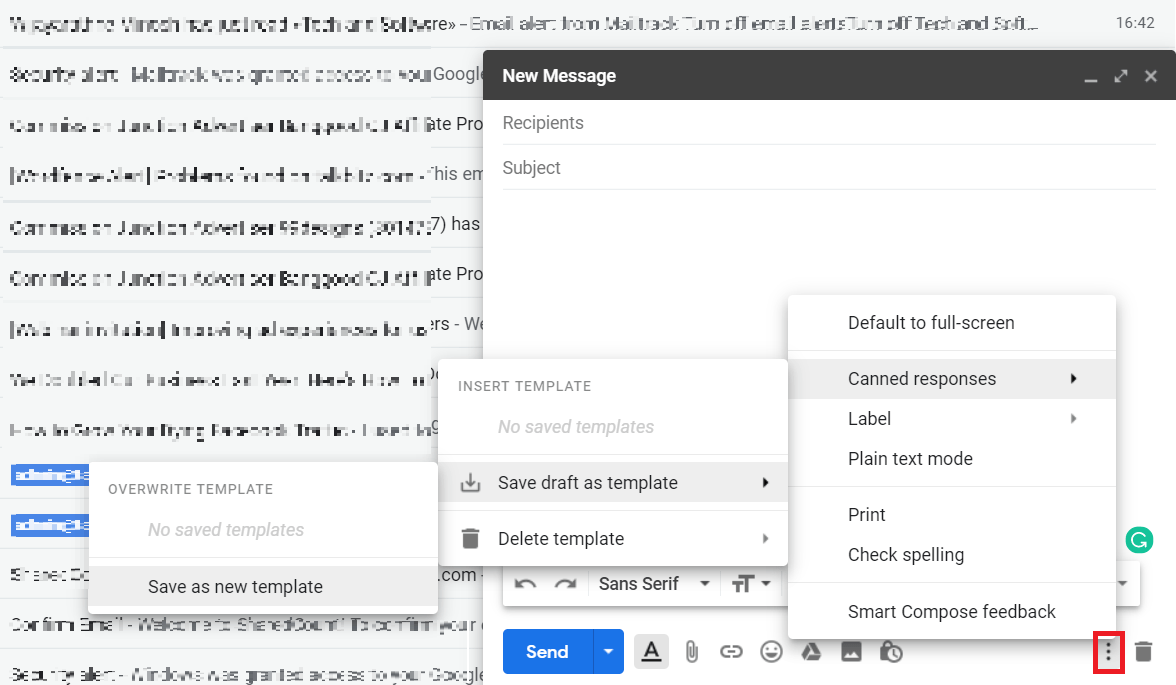
To create canned responses, open up the Composer and write your email. Then enter your subject as normal.
Now, click the menu icon left of the trash icon and choose “Canned Responses” > “Save draft as a response” > “Save as new template” and give a name to your response.
When you’ve saved your canned response template, you can use it anytime by following the menu. It’s easy and smart!
Final Thoughts on Gmail Features
These are just a few features that can help you get things done efficiently.
Gmail gives you a streamlined inbox, a personalized Gmail experience, and an integrated productivity suite that turns your email into an efficient means of communication.
I hope these features will enable you to become more productive with your business and personal email.
Don’t forget to share this with your friends!