
You’re already using Google Drive.
But most people are using maybe 20% of its features. You upload files, share a link, and move on.
Which is fine, but there are Google Drive features sitting right there in the settings that most people never touch, and a couple of them are actually worth your time.
Not gonna lie, that was me too back in those days.
I used to open Drive in the browser, download whatever I needed, edit it on my laptop, and then re-upload it, share with my friends; that was just how it worked.
Turns out I was ignoring half of what Drive can actually do.
So here are the features I actually started using, and a couple of new ones from 2026 that are worth knowing about.
1. Sync All Your Files
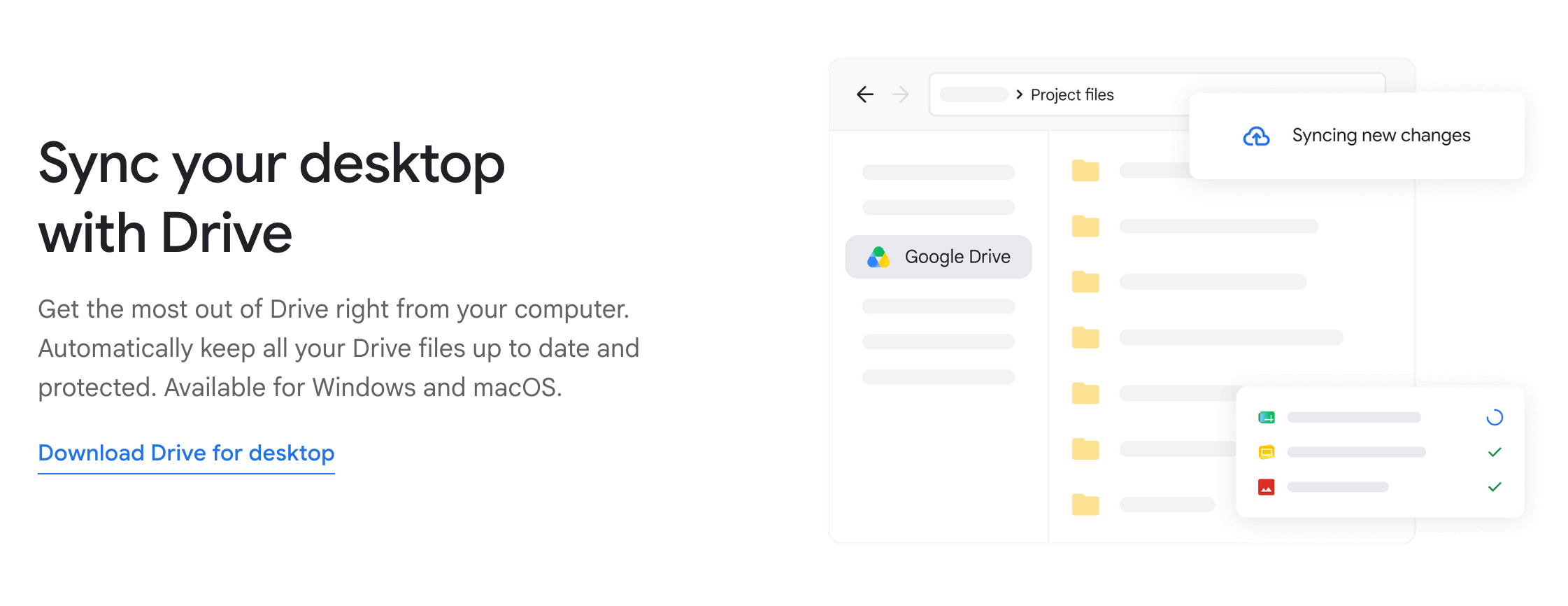
Google Drive syncs files from your desktop, laptop, phone, and tablet automatically. Which sounds obvious, but I only actually set it up properly maybe three years ago, and before that, I was manually copying files to a USB drive like it was 2012.
The thing is, I had many things I started and was terrified of losing, and I didn’t realize that Drive can just quietly back them up. I went to check once, and everything was already there.
Download the Google Drive app, sign in, and pick what folders you want to sync. After that, you just forget about it; you get access from whatever device you’re on, any time.
2. Save to Google Drive
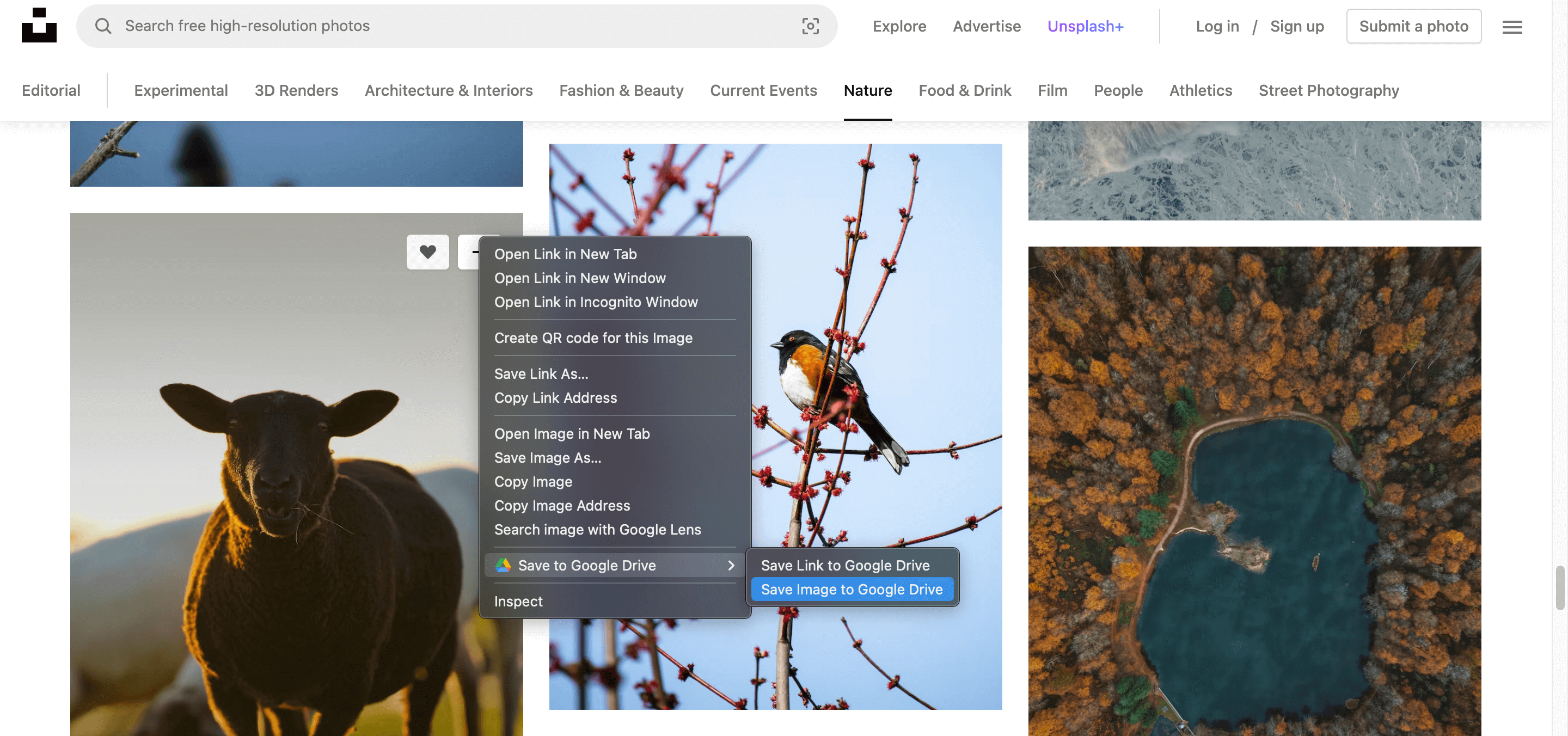
The Save to Google Drive Chrome extension is still around, though; it’s a bit hit or miss depending on what you’re saving, but for plain webpages and images, it does save you time since you skip the whole download and re-upload thing.
For paywalled articles or login-protected content, not so much.
You can find it in the Chrome Web Store by searching “Save to Google Drive.” Right-click on any image or page, and you’ll see the option pop up.
Additionally, the extension lets you pick which folders to save to, whether that’s your Drive or shared folders, so everything stays organized.
3. Convert PDFs to Docs
PDFs are popular because they keep your document looking identical no matter what device someone opens it on. The formatting stays put instead of getting messed up.
However, PDF files are not easily editable, which can make it difficult to make changes or updates to the document.
Google Drive makes it simple to edit PDFs by switching them to the Docs format.
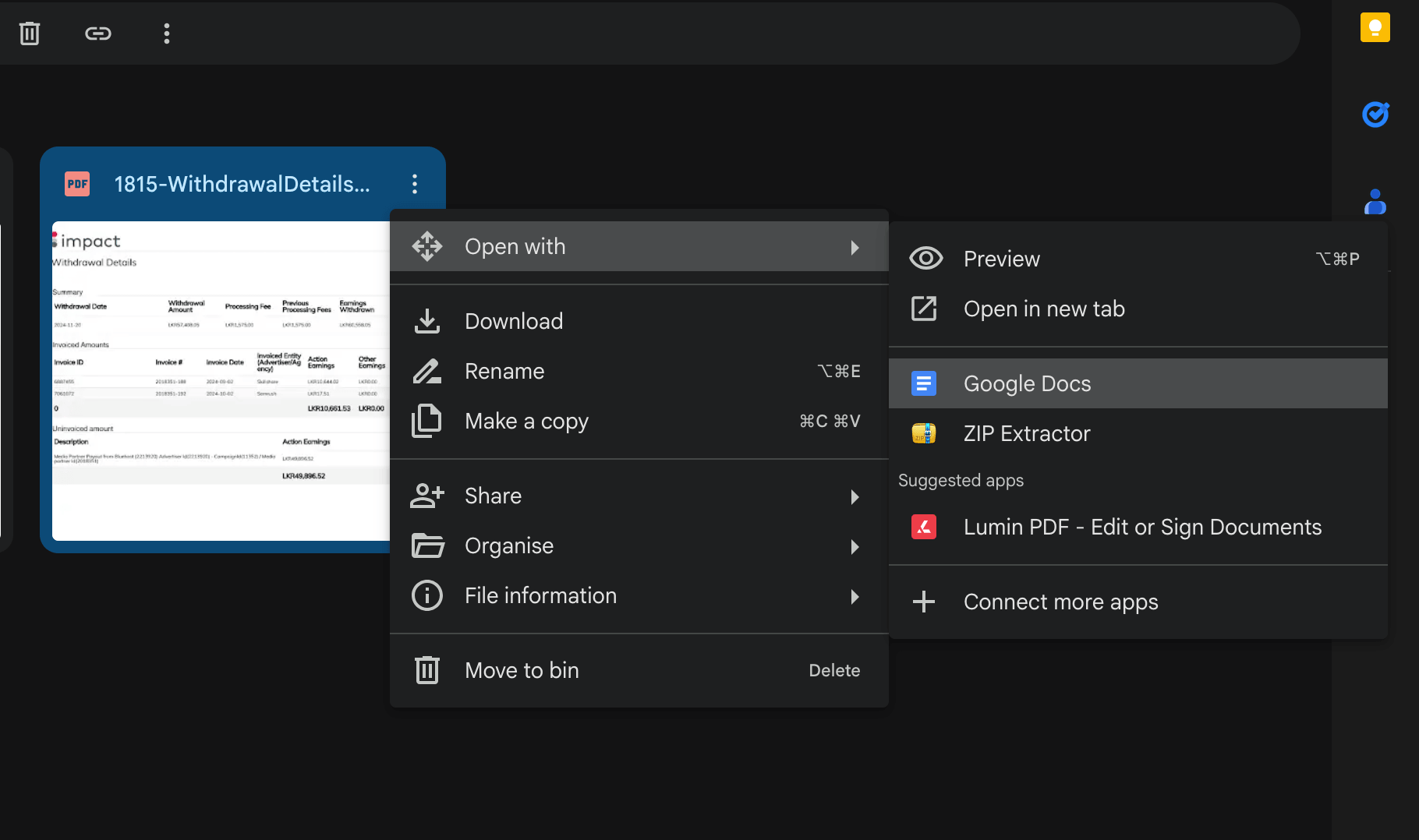
Right-click your PDF in Drive, select Open with Google Docs, and within seconds, it loads up in Docs. From there, you can edit away and collaborate with teammates on the same document.
However, if your PDF contains a lot of different fonts and formatting, Google Drive may not be able to accurately recreate it in the Docs file.
If your PDF has complex formatting and Drive messes it up, an online tool like pdfFiller handles it better. It’s what I use for anything where Drive’s conversion gets ugly, basically anything with columns, tables, or unusual fonts.
4. Save Gmail Attachments
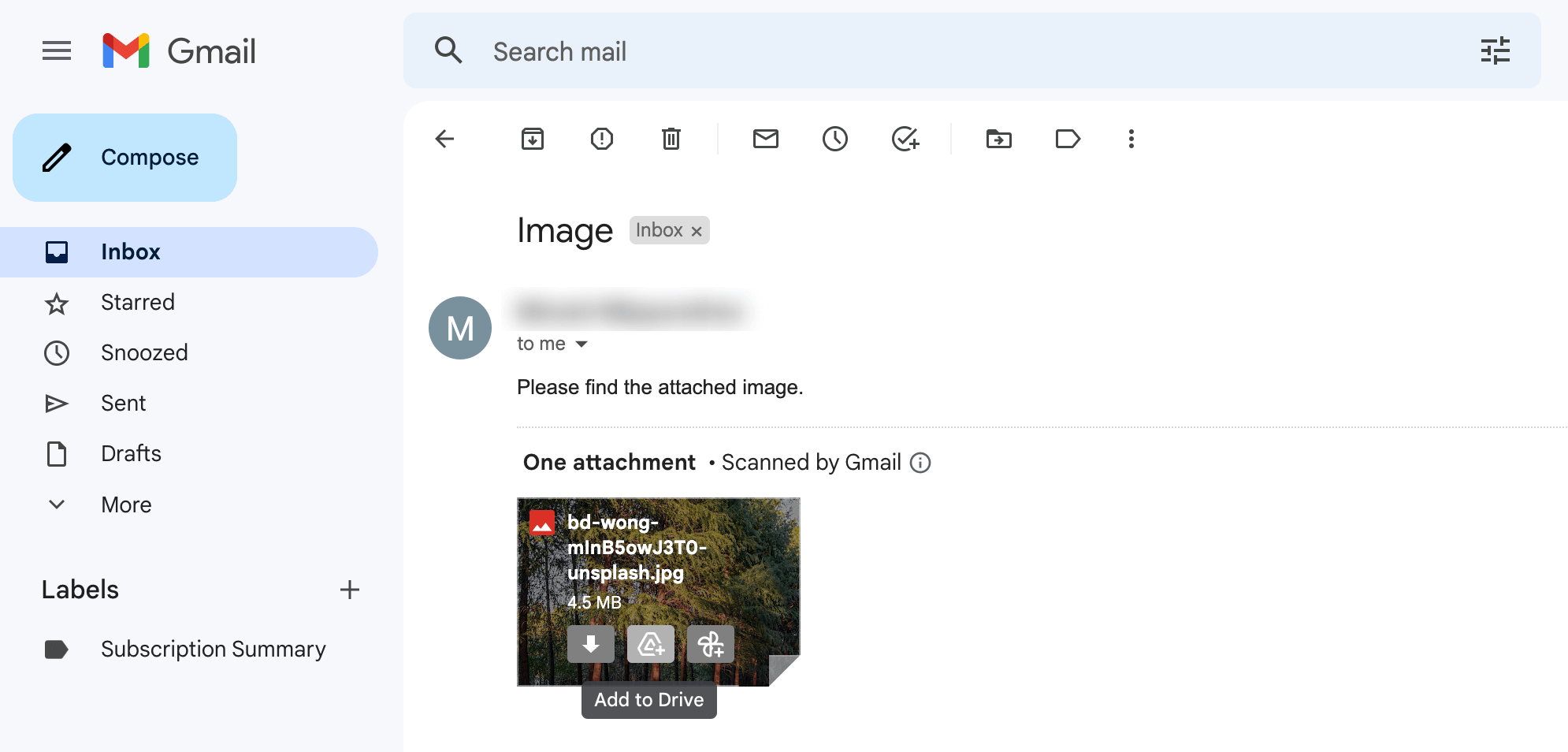
If your inbox is packed with emails that have images or attachments, this feature saves you big time. You don’t have to grab each file individually, just save everything to Drive in one shot.
This makes it way easier to keep your attachments in order and find what you need. You won’t lose track of important files that way.
All you need to do is click on the “Drive icon” next to the image or attachment, select “Add to Drive,” and you’re done!
Your image or attachment will be automatically saved and organized in your Drive, where you can access it anytime.
5. Work Offline
What’s great about Google Drive is that it allows you to work offline as well. This means that you don’t have to worry about losing your work if your internet connection drops.
This is especially useful if you’re on the go and don’t have access to a reliable internet connection.
To work offline with Google Drive:
- Install the Google Docs Offline extension.
- Go to Google Drive’s settings.
- Tick the “Offline” box.
Once you’ve enabled offline access, you’ll be able to view and edit files, including Google Docs, Google Sheets, and Google Slides, even when you’re not connected to the internet.
But if you need to collaborate with someone, you’ll need to be connected to the internet.
6. Set Expiry Dates on Shared Links
Most people know you can share a link. But what most people don’t know is that you can set that link to expire automatically.
If you’re on a Google Workspace account (which includes most school and work accounts), open the sharing settings, click on the access level next to someone’s name, and look for “Add expiration.”
You can set the link to stop working after a specific date.
This is handy if you’re sharing something temporarily with a client or contractor and you don’t want to remember to go back and revoke access later.
(Note: this is a Workspace feature, not available on personal free accounts. For personal accounts, you’d need to manually revoke access from the share settings.)
7. Extract ZIP Files
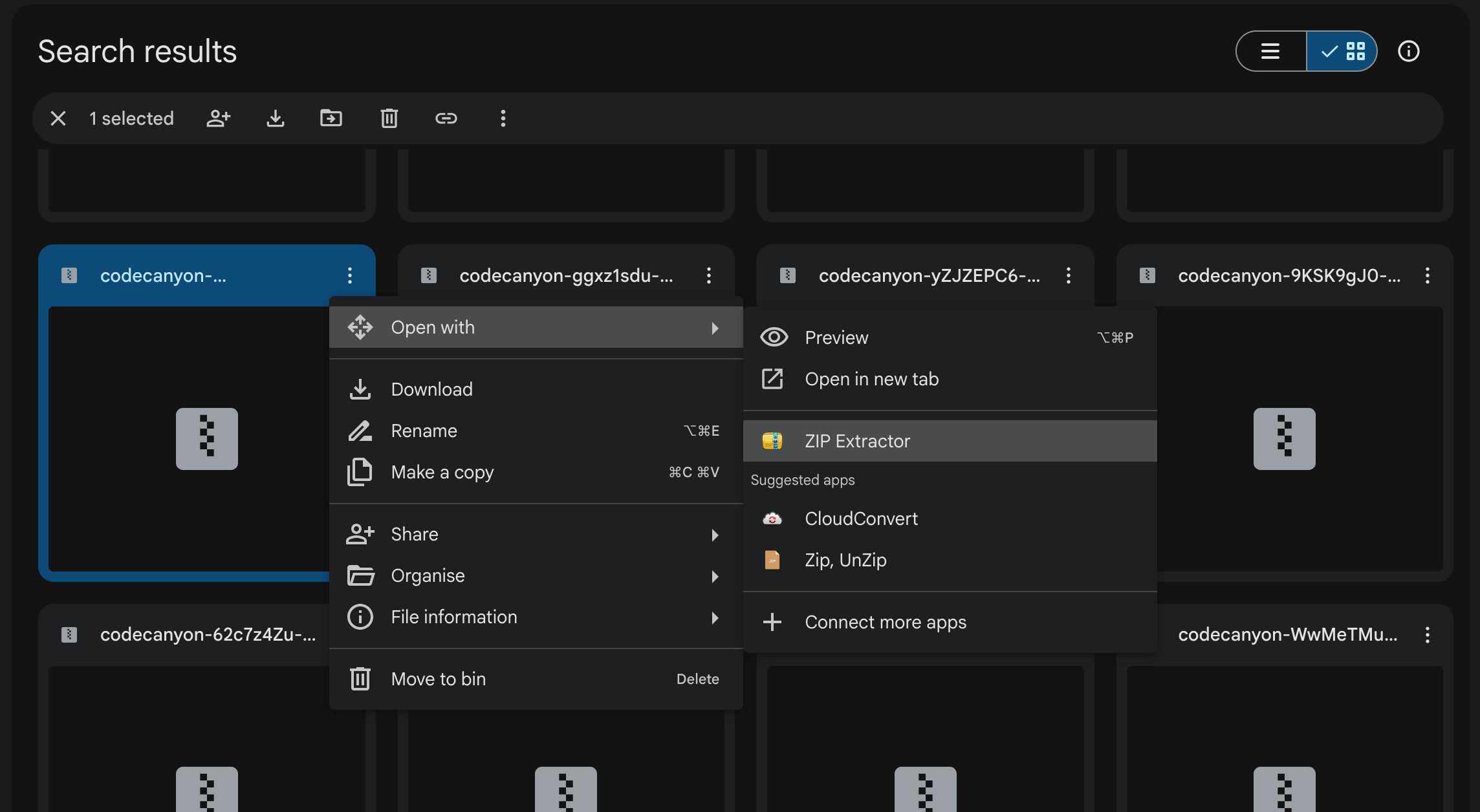
Google Drive can’t open ZIP files natively. But there’s a free add-on called ZIP Extractor from the Google Workspace Marketplace that handles it.
It supports RAR, 7z, and TAR formats too, including password-protected files, which is more than I expected from something free. You install it once, and after that, you just right-click any ZIP file in Drive, hit “Open with,” and ZIP Extractor shows up.
Also worth noting that it doesn’t extract to your current folder by default. It creates a new folder with the ZIP file’s name. Small thing, but it got me confused the first time.
8. Ask Gemini in Drive
This one surprised me when I first tried it.
You can now ask Drive questions about your own files using plain language. Like, “What did I agree to in that freelance contract from March?” and it will actually scan across your documents and give you an answer with citations.
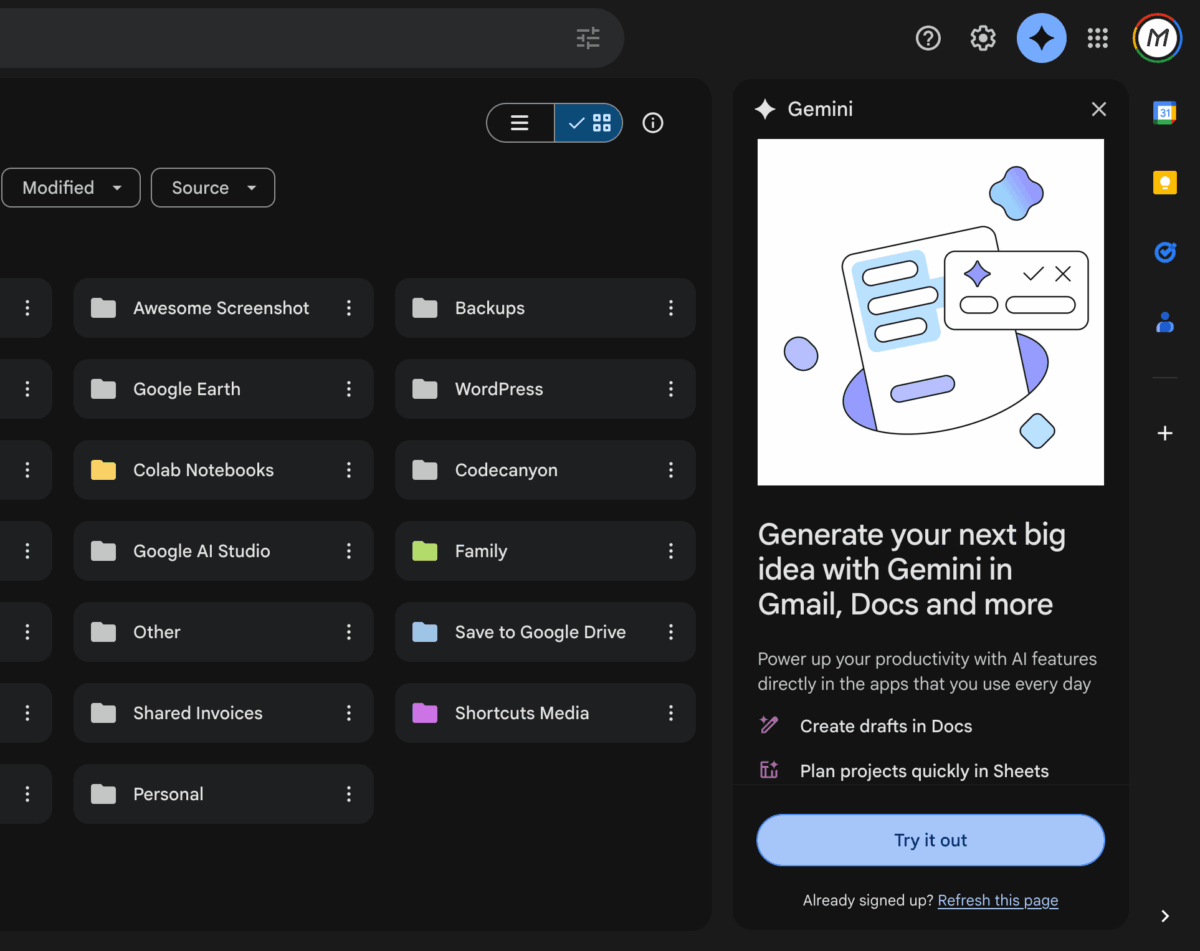
It’s called Ask Gemini in Drive, and it rolled out to Google AI Ultra and Pro subscribers in April 2026. If you’re on a paid Workspace or Google AI plan, look for it in the side panel under “Home.”
It’s not perfect. It works best when your files are named properly and organized in Drive. If your Drive looks like mine did six months ago (files named “Untitled Document (3)”), good luck.
But for anyone who stores contracts, research, or project files in Drive, this one’s worth checking.
Final Words
Google Drive is one of those tools you think you already know, and then one day you try something new and realize you’ve been doing it the hard way for years.
Start with one or two from this list.
The offline mode, the Gmail attachment save, or the Gemini search, if you’re on a paid plan. You don’t have to try everything at once.
And if you’re still downloading and re-uploading files like I was, well, now you know.
Frequently Asked Questions
- Can Google Drive open and extract ZIP files?
- Not natively. You need to install the free ZIP Extractor add-on from the Google Workspace Marketplace first. After that, right-click any ZIP file in Drive and open it with ZIP Extractor to unpack the contents.
- Does Google Drive work without an internet connection?
- Yes, but you have to set it up first. Install the Google Docs Offline Chrome extension, go to Drive settings, and turn on offline access. After that, you can view and edit Docs, Sheets, and Slides even when you are not connected.
- What is Ask Gemini in Google Drive?
- It is an AI feature that lets you search your own Drive files using plain language questions. You can ask something like “what were the payment terms in that March contract?” and it finds the answer with a citation to the source file. It is available to Google AI Ultra and Pro subscribers as of April 2026.
- Can Google Drive convert a PDF into an editable document?
- Yes. Right-click any PDF in Drive, select “Open with Google Docs,” and it converts to an editable file within seconds. Formatting may not be perfect if the PDF has complex layouts, tables, or unusual fonts.
- Is Google Drive free to use in 2026?
- Yes, Google Drive is free with 15GB of storage, shared across Gmail and Google Photos. If you need more, paid plans start at $2.99 per month for 100GB through Google One.