I used to open Photoshop for everything. Even the dumb stuff.
Like, resizing a product image for a blog post, and I’d wait for the whole thing to load, click through three panels, get confused about layers, and somehow end up with the wrong file saved.
For a 600×400 JPG. That’s maybe a 4-minute job that took me 25 minutes because I convinced myself Photoshop was the only real option.
Turns out it’s not. Not even close.
There are free photo editing websites that run right in your browser, no installation, no setup, and for most everyday editing needs, they’re good enough.
I have used a number of these myself, so I will tell you up front which ones I actually still use and which ones I opened one time, and that was it.
1. PicsArt, Good for Social Media Editing and AI Stuff
PicsArt is the one I used to use the most for casual edits like birthday wishes, memes, or just playing around with stickers for fun, but now it looks more AI-first and has tons of tools, and allows editing both images and videos.
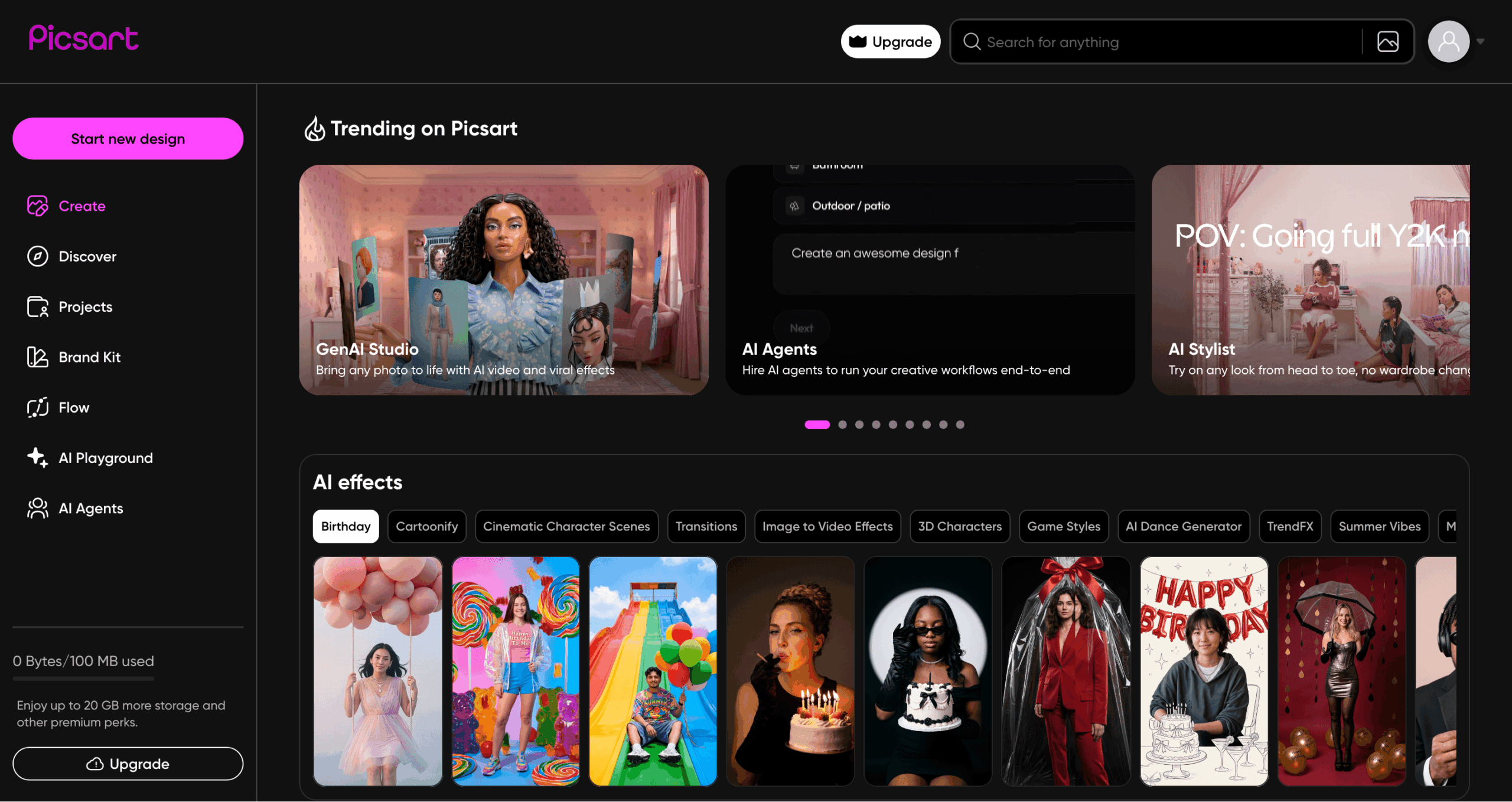
The batch editor is another thing that sold me. You can run up to 50 photos through the same settings, same crop, same filter, in one go. If you’re making content regularly and you have a lot of product shots or blog images to resize, that alone saves a real chunk of time in a week.
When it comes to AI features, background removal is clean, the AI-enhance tool fixes lighting and sharpness pretty well without you having to drag many sliders, and there’s an AI image and video generator in there too now.
Most of the AI tools need the Pro plan, which starts at $15/month. The free plan gives you filters, collages, stickers, and basic editing, but if you are regularly making content with it, you will hit those free limits sooner than you think.
If I’m being straight about the free version, what it had before and what it has now, it’s best for AI stuff, and if you’re editing for social media with AI, this is a good website. For some small edits, it works, but it feels like a lot.
2. Canva, Best for Templates and Making Things Look Good Fast
Canva is something that most people these days already know about and have probably used at least once or twice. But the 2026 version is a bit different from what a lot of people have in their heads.
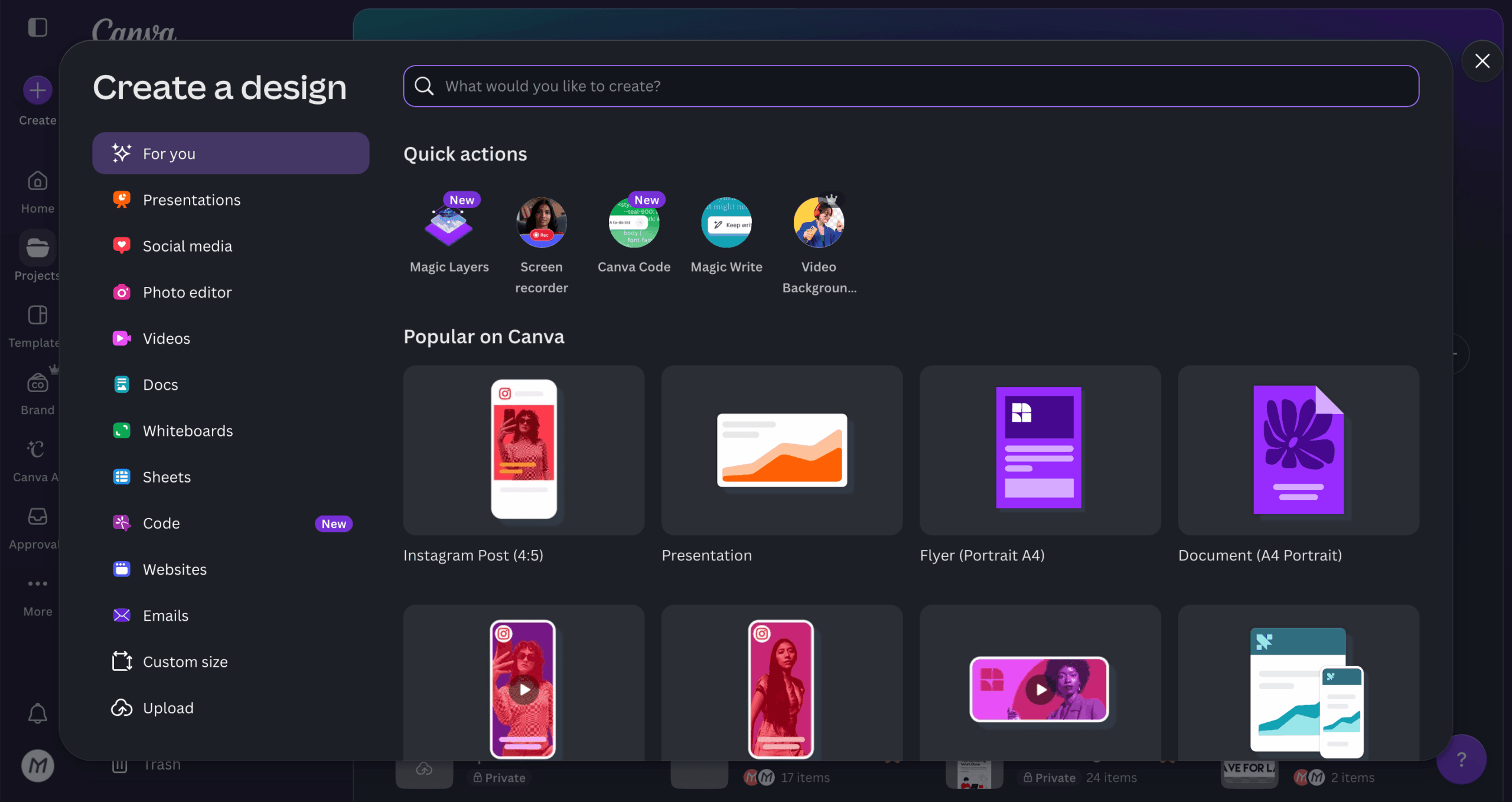
The free tier now has access to a more capable editing environment than it did even a year ago, but you can still do a lot with just a free Canva account.
On top of that, Canva added Generative Fill, similar to Photoshop’s AI version. You brush over something in a photo, type what you want, and it fills it in. It’s not perfect every time, but it works for a lot of situations, swapping out backgrounds, removing things that shouldn’t be there, that kind of use.
There is a background remover in the Pro plan, and it is really good; it only takes one click to work. They also have this built-in social media scheduler. I use it all the time, like basically every single day, without any trouble.
Where Canva wins is in their templates. If you need something that looks good fast, social posts, Pinterest graphics, or blog featured images, you’ll go faster in Canva than anywhere else. The learning curve is basically nothing, or you can take a free course here and start using it.
The free plan is actually generous. Pricing for the paid versions depends on where you are in the world, but you can do so much without needing to upgrade if it is just for casual use.
3. Pixlr Editor, Free Photoshop-Like Features Without the Price Tag
Pixlr Editor is a free tool that feels a lot like Photoshop, but you do not have to pay any money to use it. You get real editing features like layers, blend modes, a healing brush, and curve adjustments.
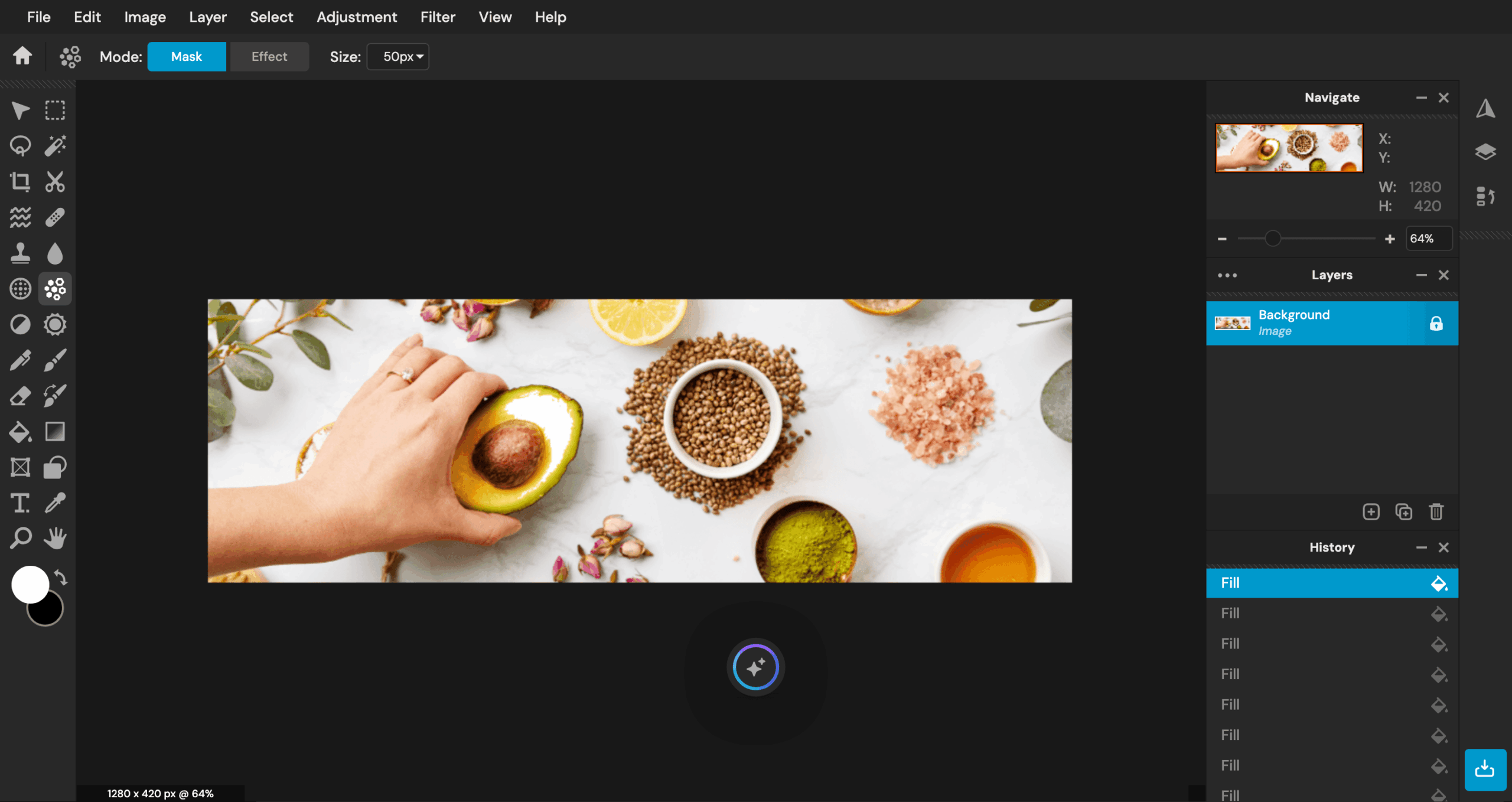
This is a good one for quick cropping, color correction, and adding text, and you also have an AI generator button floating around that you can use to edit things with AI, but you may need to pay for that because it uses credits.
The things I noticed are that it has a really good balance between the regular photo editing tools and the times when we actually need to use AI to help us out with something.
The only downside to the free plan is the ads. They are not horrible, but they are there. If you want to pay, the premium starts at $2.49 a month. That is the cheapest paid choice on this list by a pretty good amount.
4. Adobe Express, Simple and Fast If You’re Already in the Adobe World
Adobe Express gets overlooked because people think anything Adobe must cost money. But the truth is, their free version is actually pretty useful for everyday stuff, and it really gives off that same kind of Canva vibe for making designs.
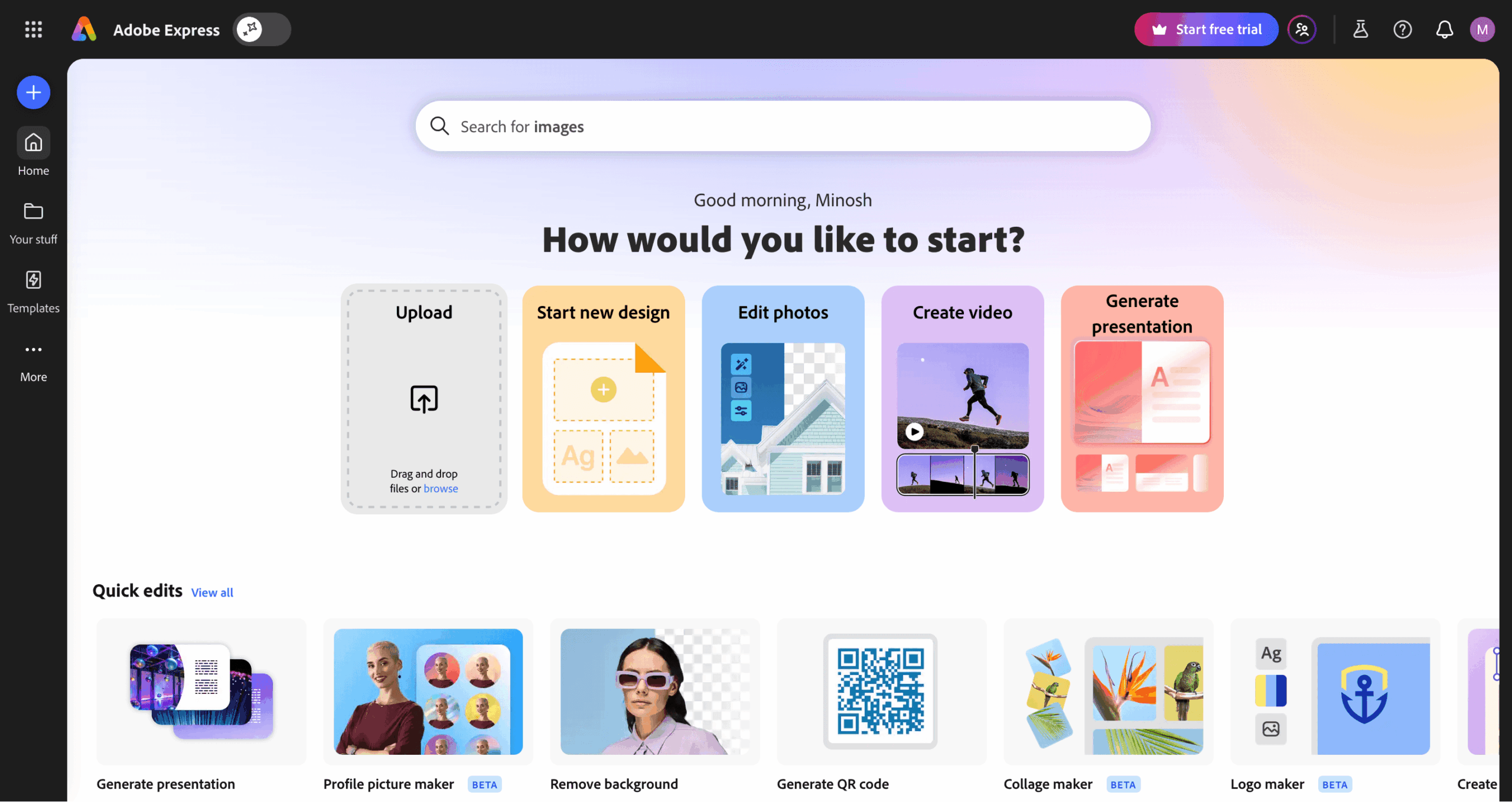
You get resizing, filters, brightness, and contrast sliders, text overlays, and a background remover on the free plan, yes, free. The interface is simple enough that you’re not hunting for features every two minutes.
The downside of the free tier is that you do not get as many templates as Canva. And the stuff you can pick from is not as big, but the best part is that you get access to the huge library of Adobe fonts.
The Generative AI features are paid here, and you need at least the Premium to access them. There are four different plan types for individuals, businesses, students, and educators, too.
But if you need something quick and clean for social media, and you don’t want to think too hard, Express is fast. And for scheduling posts, it’s also free. That means you get 1 account per social network.
It’s not my first choice, but it earns its spot on this list. And if I had to go with a Canva alternative, this was it.
5. Photopea, Full Photoshop Experience in Your Browser, No Download
Photopea is what happens when you rebuild Photoshop for your web browser and let everyone use it for free. That sounds like a big deal, but it is not too good to be true. It really has the Photoshop experience that most casual users and even some professionals need.
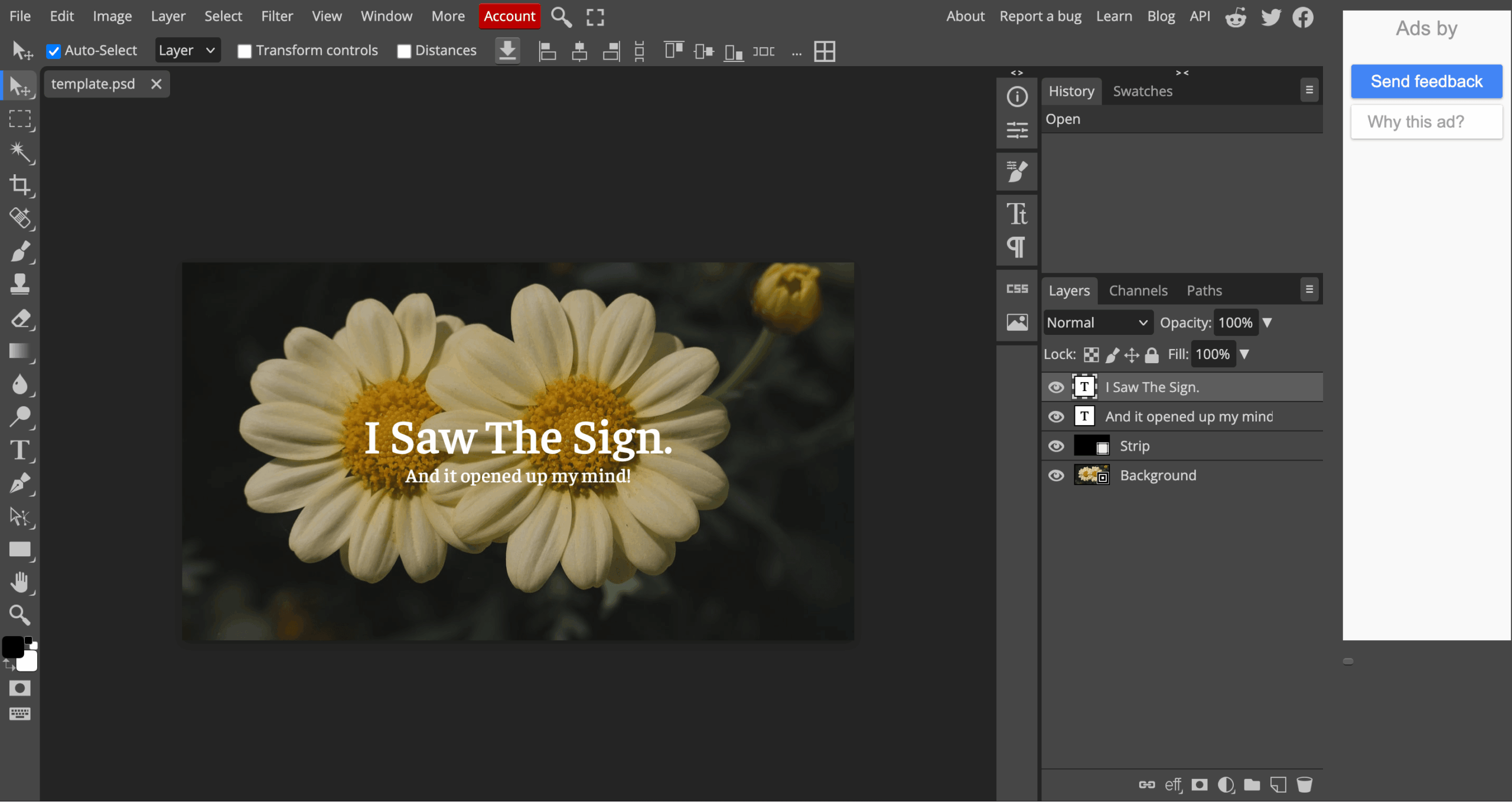
It even opens PSD files, so if someone sends you a Photoshop file and you don’t have Photoshop, this is how you open it without paying Adobe anything. You’ll see the same layout, the same panels, the same toolbar. Layers, masks, curves, blend modes, Smart Objects, the healing brush, all of it.
The free version shows ads on the sides, not inside the editor itself, so they do not really get in the way. There is no watermark on your exports, and your files are processed locally on your device, too, if you do not want to create an account on it.
The Premium plan is $5/month and removes the ads, adds cloud storage, and unlocks AI options. But the free version is already more capable than most of the other tools on this list.
But if you have never used Photoshop before, there is a learning curve. The interface is packed with tools and buttons. You can’t just open it and figure everything out instantly. But lots of tutorials exist out there, too.
Which Free Photo Editor Should You Actually Start With?
If you’re making content for social media or anything more creative, PicsArt is what I’d point you to first.
The batch editor and AI tools are built for that kind of work, and the $15/month Pro plan isn’t hard to justify if you’re using it more than a few times a week.
If you need templates more than editing, go with Canva. It’s the fastest tool here for making something that looks good quickly, and the free plan is more than enough.
If you want a browser editor that has modern AI tools and you do not want to deal with layers and panels, go with Pixlr Editor. If you want the full Photoshop feel in a browser and you are okay with a harder interface to learn, try Photopea.
If you just need something fast and simple, one photo, basic edits, and more brand-focused or already inside the Adobe system, try Adobe Express.
And yes, none of these need you to download anything. Pick one, open it, and you will know in about 10 minutes if it will work for what you are doing.